Last updated on October 27, 2026
Shopify app bloat has no fixed count threshold. Audit overlap, scripts, performance, and removal risks before trimming your store's stack.
How many apps are too many? There is no universal cutoff: Shopify app bloat begins when unnecessary functionality, duplicate tools, or unowned storefront code create costs and work without a clear business purpose. If bundles are part of the stack you are reviewing, our guide to Shopify bundle apps helps frame that specific choice.
An app count alone does not tell you what is slowing a page or creating extra work. Shopify lists apps alongside third-party services, analytics, theme code, and media as factors that influence web performance, so diagnosis needs to happen at the page and integration level, not by counting icons in your admin. Shopify’s performance overview explains the broader picture.
A store can have a long app list and still need every tool in it. One app might support a key operational workflow without adding storefront code; another could load scripts across every page for a feature customers rarely use. The useful question is not “How many apps do we have?” but “What does each one do, and what does it cost us to keep?”
Think of bloat as a mismatch between a tool’s ongoing cost and its current value. That cost includes subscription fees, storefront scripts, overlapping features, troubleshooting, and the risk of relying on code no one owns. An app that supports an essential workflow can earn its place even if it adds complexity. An unused or duplicated app deserves a closer look even if its subscription is free.
A scan of 340,557 store records, using a March 22, 2026 extract, found a mean of 2.5 raw detected app signatures and a median of two. The publisher cautions that these are detected signatures, not confirmed Shopify Admin installations or a validated threshold for bloat. That distinction is useful: a count can guide an investigation, but it cannot tell you what to keep. The 2026 storefront scan also notes that signature detection can miss backend tools or include aliases.

Imagine that a review tool, loyalty app, and popup service were all added during separate campaigns. The right audit does not assume that any one of them is waste. It checks whether each tool still has an owner, serves a real customer or operational need, and duplicates work already handled elsewhere.
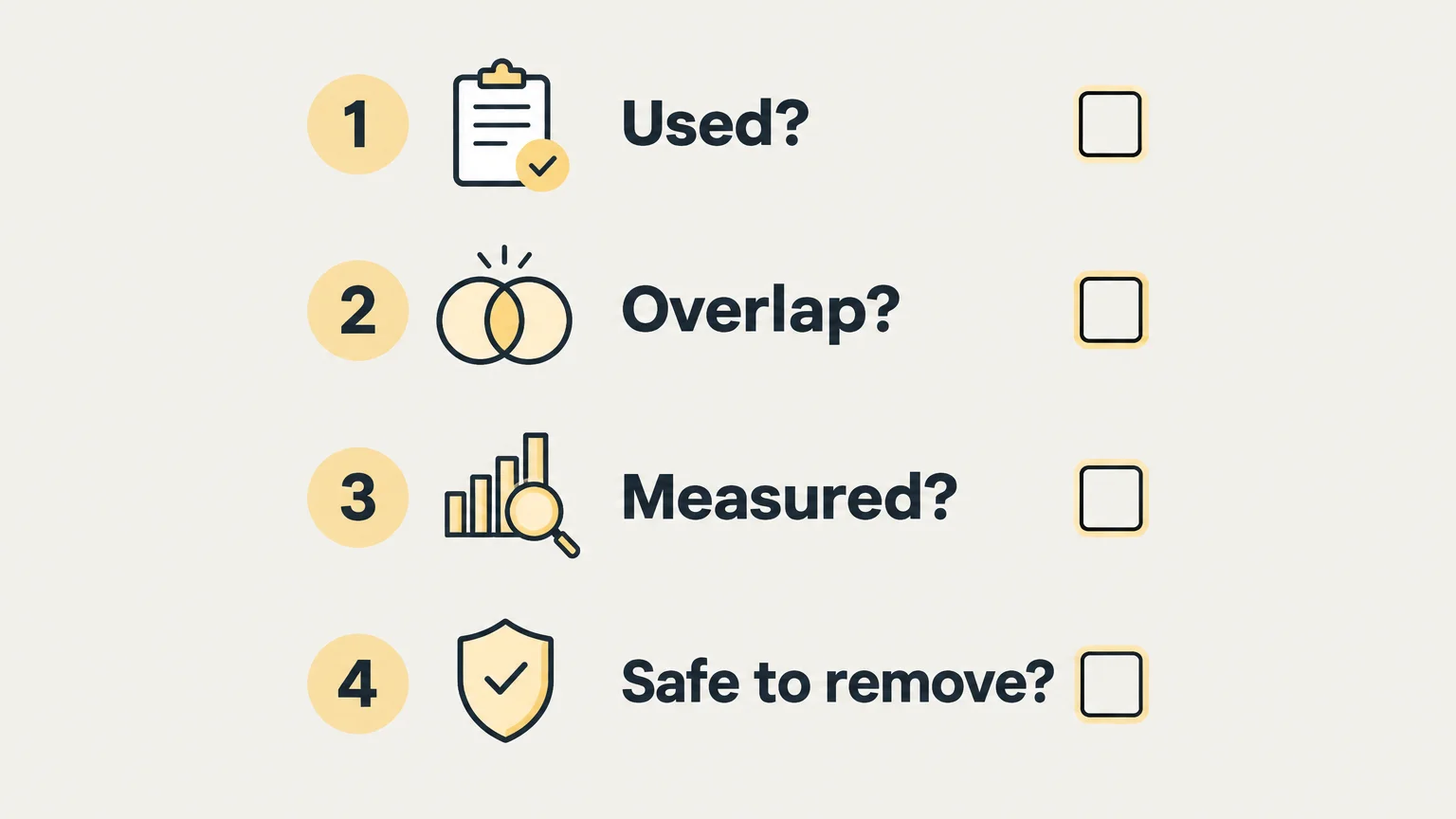
Make a simple inventory and record the purpose, owner, monthly cost, workflows supported, and storefront pages affected by each app. Then classify each one as keep, investigate, or remove after testing. Ask the person responsible for marketing, support, or operations before deciding that a tool is unused; a quiet app may still run an important behind-the-scenes process.
Look for feature overlap by function rather than by app name. Two tools may both add promotional messages but serve different audiences or customer journeys. Conversely, separate tools may each handle a small part of the same task. Check Shopify’s built-in capabilities and your current theme before replacing an app with another subscription or custom code.
For a bundle-related audit, compare the app’s actual role with the offers and workflows you need. Our Kaching Bundle app page is a specific starting point for evaluating bundle functionality, not a reason to remove a tool before checking its purpose and impact.
A reliable performance baseline makes an app audit more useful than a single speed-score screenshot. Before changing anything, record the experience on representative mobile pages, such as a product page, collection page, and cart. Note loading, interaction, and visual stability, and keep the same pages and testing conditions for later comparisons.
Shopify’s Web Performance Reports provide real-user information over time. Lab tests and browser developer tools can help isolate a particular script or integration, but a test on one page under controlled conditions is not the same as what all shoppers experience. Compare like with like, and check the particular page where the feature appears instead of assuming that every app affects every template.
Connect the technical check to the app’s job. If an app adds a review widget to product pages, test a product page with and without the widget’s code and check that review content still works as expected. If a tool supports an internal workflow, document the staff time or process it saves before comparing its cost with alternatives.
Measure one change at a time where practical, and keep notes on what changed and when. This helps separate an app’s impact from image changes, theme updates, or other scripts added during the same period. Do not treat a change in a lab score as proof that an app was the only cause, or that removal will improve sales.
Uninstalling an app does not always remove its storefront code. Shopify’s developer guidance explains that unused third-party scripts can continue to run after an app is no longer needed, so the cleanup should include both the app itself and any code it added to the theme. Shopify’s script-audit guidance describes ways to inspect requests and compare script activity.
Before making a change, identify dependent workflows and follow the app developer’s removal instructions. Make a copy of the theme, confirm what data or settings you need to retain, and note any subscriptions billed outside Shopify. After removal, inspect the affected pages and test customer actions such as selecting a product option, adding an item to the cart, and completing the workflows the app supported.
Cleanup risk is a reason to plan the removal, not to leave every old integration in place. If you cannot identify a code snippet or confirm its purpose, ask a developer to investigate it rather than deleting unfamiliar code on a live theme. Keep the published theme untouched until you have verified the change in a duplicate or preview.
If the audit identifies an app used only for storefront functions such as bundles, cross-sells, quantity breaks, or upsells, compare those needs with features already available in your theme. A theme-native option may reduce the number of separate tools you need to manage, but check that it covers your specific use case before changing the setup.
The FullStack theme includes native features for bundles, cross-sells, upsells, and quantity breaks, among other storefront functions. It is built by the team behind The Deployer, a Shopify CRO agency with seven years of e-commerce experience, more than 150 store redesigns, and hundreds of A/B tests. Those capabilities make the theme relevant when an audit points to overlapping storefront features, while the decision to remove any particular app should still follow your own workflow and performance checks.
For other needs, such as specialized integrations or operational workflows, a dedicated app may remain the appropriate choice. The goal is a stack that supports the store without redundant functions, unmeasured storefront code, or tools nobody is responsible for maintaining.
Shopify app bloat is a problem of unnecessary cost, duplicated functionality, unmanaged code, or avoidable maintenance, not a fixed installation count. Review what each app does, measure its effect on the relevant pages and workflows, and remove it only after checking dependencies and leftover code. Keep the tools that provide clear value, and revisit the stack as your store changes.
If your audit finds that separate apps are handling storefront features your business still needs, compare those requirements with the capabilities of a theme before adding another tool. A native theme feature can be a practical alternative for some storefront tasks, while specialized apps may still be right for other workflows.
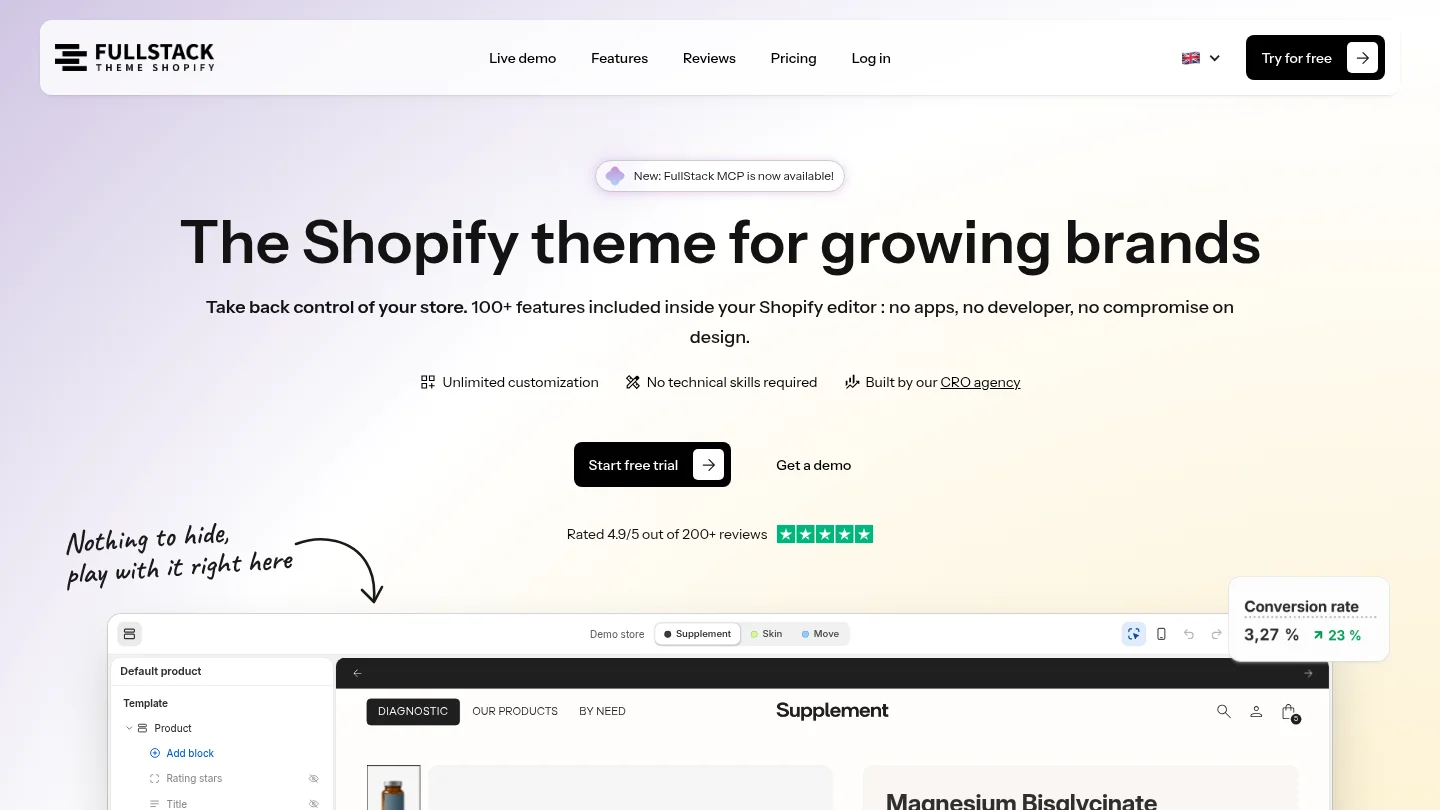
The FullStack theme includes more than 100 native features, including bundles, cross-sells, upsells, and quantity breaks, within the Shopify theme editor. It is built by a team with experience across more than 150 store redesigns and hundreds of A/B tests. Explore Shopify theme features that can replace apps and assess which ones match your store’s needs.
There is no universal app-count threshold that defines bloat. Review whether each app is used, overlaps another tool, adds measurable cost or storefront impact, and has a clear owner.
No, an app’s effect depends on what it does and how it runs. Measure the relevant pages and workflows rather than assuming every installed app adds the same storefront burden.
Yes, some apps add code to a theme that may remain after uninstalling. Follow the developer’s removal guidance and check a theme copy for leftover code before publishing changes.
Compare the theme’s actual feature with the app’s specific use case, settings, and dependencies. The FullStack theme includes native options for storefront functions such as bundles, cross-sells, upsells, and quantity breaks, but verify that they cover your workflow before removing an app.
Review it when your store’s needs change and after meaningful app, theme, or storefront-code updates. A recurring review helps catch unused tools and overlapping functions before they become difficult to trace.
Rated 4.9/5 out of 200+ reviews






